

步驟 1: 安裝 RDS-Print 在您的電腦
安裝 RDS-Print 非常簡單。
只要 下載軟體,執行 Setup-RDSPrint.exe 和遵循「詳細說明的安裝」步驟。
檔案解壓縮和複製到以下目錄:
"C:\Program Files\RDS-Tools\RDS-Print"資料夾 (32 位元系統)"C:\Program Files (x86)\RDS-Tools\RDS-Print"資料夾 (64 位元系統)
免費試用版提供 14 天的完整功能試用。
安裝後,將在桌面加入新的圖示:
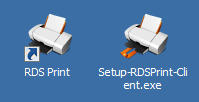
Clicking on the icon “RDS Print” will launch a small settings tool, which you can use to get your current license status and activate your license.
The second icon is a Client Setup file to be installed on your client workstation(s) – more on this below.
步驟 2: 在您的工作站安裝 Client 程式
Copy the Client Setup file on your workstation(s), then run it.
It does not require administrator rights and can be run as a standard user.
Double-click on the Client Setup file on your workstation to launch it. The installation process is very quick and straightforward.
After the installation, your workstation is now ready.
You can start printing from your remote desktop to your own local printer!
步驟 3: 使用 RDS-Print 從遠端桌面工作階段列印文件到用戶端
使用標準 mstsc (RDP) 用戶端連線到遠端伺服器。
開啟任意應用程式 (Word, Excel, Internet Explorer, 或其它)。
使用您的應用程式,列印開啟的文件。
在「選擇印表機」視窗,選取 “Universal Printer”。
您的文件將列印到您的本機印表機。
步驟 4: 使用本機預覽而不是印列
在您的工作站桌面,按兩下 “RDS-Print Settings” 圖示。
將顯示以下視窗:
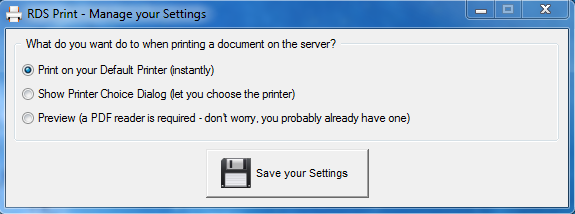
變更設定為 “Preview” and click on the “Save” 按鈕。
When you will print a new document on the remote server, its preview will now be displayed on your local workstation (instead of being automatically printer on your local printer).
接下來
請繼續參考 詳細說明。
如果有任何需要協助或問題,歡迎 聯絡我們。
 規劃和管理 RDS-Print
系統需求
硬體
RDS-Print 沒有特定硬體需求,能和任意公司或家中的 Windows 電腦動作。
作業系統
RDS-Print 與以下 OS 相容:
- Windows XP
- Windows Vista
- Windows 7
- Windows 8
- Windows 10
- Windows Server 2003
- Windows Server 2008 and 2008 R2
- Windows Server 2012 and 2012 R2
- Windows Server 2016
支援 32 和 64 位元版。
網路
如果無法使用 RDP 連線您的伺服器,請聯絡您的系統管理員,因為這是 RDP 問題,而不是 RDS-Print 問題。
安裝
執行 RDS-Print 安裝程式,接著遵循以下安裝步驟。
請注意,您必須以系統管理員身分執行這個安裝程式,預設 Windows 將自動顯示提示。
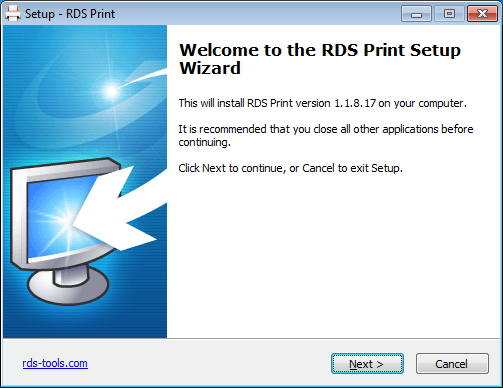
按一下 [Next]。
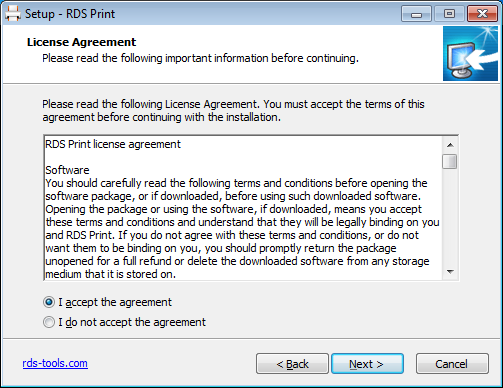
按一下 [Next] 接受授權合約。
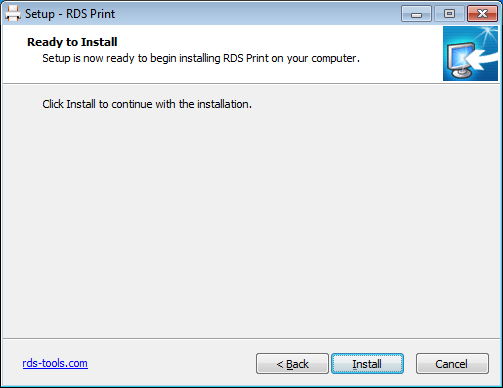
安裝程式現在準備好安裝 RDS-Print 在您的電腦。
按一下 [Install] 開始進行安裝。
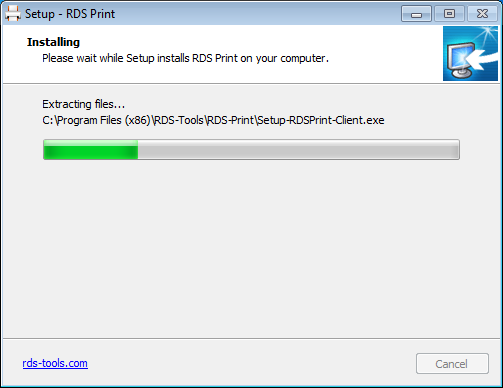
顯示進度列,使您了解安裝進度。
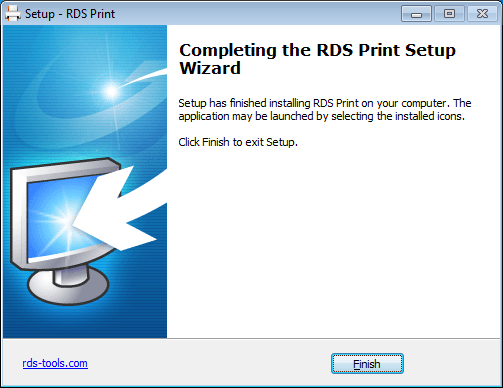
安裝現在完成。
若要使用 RDS-Print,您只要登出 (如果有) 再重新登入遠端 RDP 工作階段。
免費試用版提供 14 天的完整功能試用。
更新 RDS-Print
執行 RDS-Print 安裝程式,接著遵循以下安裝步驟。
請注意,您必須以系統管理員身分執行這個安裝程式,預設 Windows 將自動顯示提示。
按一下 [Next]。
按一下 [Next] 接受授權合約。
安裝程式現在準備好安裝 RDS-Print 在您的電腦。
按一下 [Install] 開始進行安裝。
顯示進度列,使您了解安裝進度。
現在更新安裝完成,您可以開始使用最新版的 RDS-Print。
若要使用 RDS-Print,您只要登出 (如果有) 再重新登入遠端 RDP 工作階段。
啟用授權
請注意,為了啟用授權,您必須以系統管理員身分執行 RDS-Print。
若要如此,以滑鼠右鍵按一下桌面上的 RDS Print 圖示,接著按一下 [以系統管理員身分執行] 項目。
將顯示以下視窗:
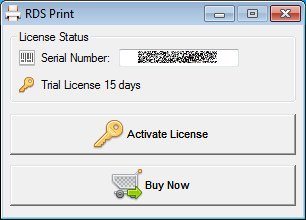
按一下圖中 [Activate License] 按鈕,並選取平穩或經銷商所提供的或從我們的 Licensing Web Portal 所下載的 licenseXXX.lic 檔案。
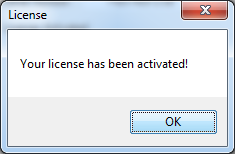
授權啟用時,將顯示以下確認訊息:
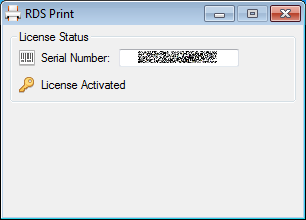
從現在起,您的授權視窗將如下圖所示,以確認您已經啟用授權:
感謝您選擇 RDS-Print!
常見問題集
有任何疑問? 請查看 RDS-Print FAQ
